Cleaning and maintenance
Print cleaning labels and export plans
Generate one label, send labels in a batch, and export weekly or daily lists with the necessary checks.
- I own or administer an agency
- I manage operations
- I work at the front desk
- Agency
On this page
Holidario provides different outputs for different needs. Choose the smallest one you need and review its data before printing or sharing.
Before generating any document#
Confirm:
- team and date;
- property, reservation, and assignees;
- bedding and supply allocation;
- that there are no duplicate or cancelled tasks; and
- who will receive the document.
PDFs may contain locations, names, instructions, or operational QR codes. Treat them as internal documents and remove local copies under the agency's policy.
Individual label#
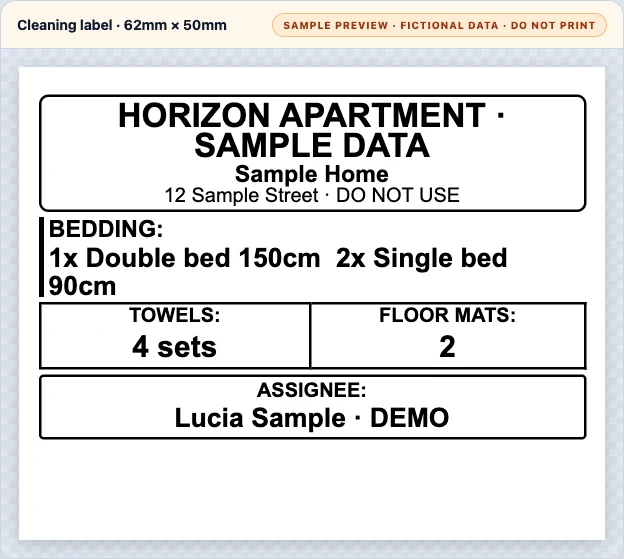
- Open a cleaning task.
- Select Cleaning label.
- Review the generated view before printing.
- Confirm the property, bedding, towels, floor mats, and every assignee name.
- Print or save only the required copy.
The label is designed for an approximately 62 × 50 mm format. If bedding or supplies are missing, correct the reservation allocation first; writing over an incorrect label is not a permanent fix.
This path generates a PDF in the browser and does not require sending the job to a printer configured in PrintNode.
Batch labels#
Use a batch to send several labels to a sticker printer:
- Open PMS > Cleaning tasks and filter the period.
- Select only reviewed tasks.
- Choose the Print labels batch action.
- Confirm the number of labels queued.
- Open batch status and wait for completion.
- Check the printer and, when available, download the generated PDF copy.
This path requires a team PrintNode integration and a printer configured with the sticker type. A queued message does not mean paper was printed; verify the physical output.
Weekly plan#
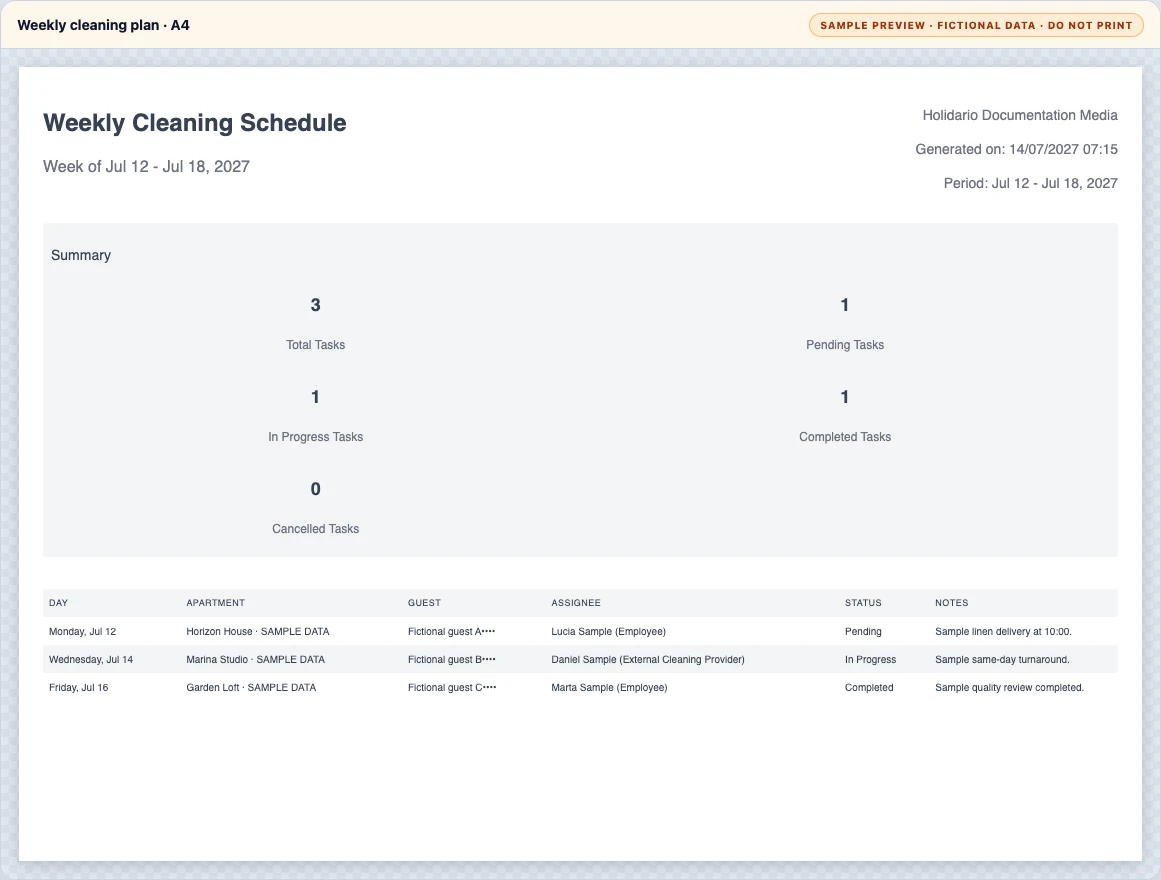
From Dashboard > Weekly Cleaning Schedule:
- select the week;
- review pending items, overlaps, and shared tasks;
- select Export PDF; and
- verify the range in the heading.
A task with several people may appear once per assignee in the PDF. Do not count those rows as separate jobs without checking the identifier.
Daily cleaning list#
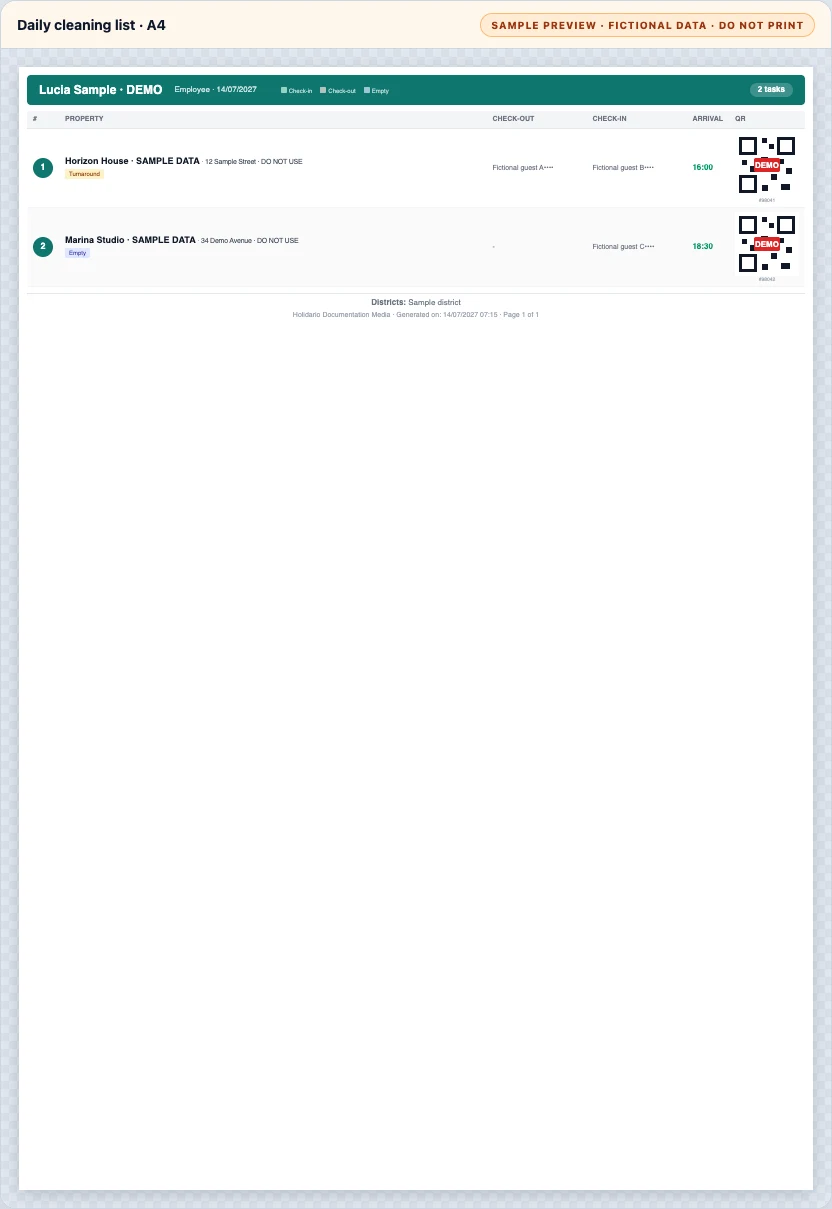
From Dashboard > Daily PMS Agenda:
- select the date;
- review the cleaning column;
- choose Export cleaning tasks; and
- verify the date, groups, and suggested order.
The daily list may include a QR code pointing to the assigned task. The QR does not bypass login, active team, or authorization, and its presence does not prove that the workflow is compatible with the device used to scan it.
Before operational use, scan a test QR with the intended combination and verify sign-in, team, assigned task, and denial of an unrelated task. If the link is clipped, does not open, or a required action is missing, provide a link through the approved channel and use a device the agency has already verified. Do not publish the QR code or send it outside the operation.
If it fails#
- The batch action is missing: you need read access to cleaning tasks and valid selected tasks.
- The batch remains pending: wait once and review status; do not submit the same batch repeatedly.
- PrintNode fails or no paper appears: confirm that the integration and sticker printer are active; the individual PDF remains a review alternative.
- The individual label does not generate: confirm that the reservation has a task and belongs to the active team.
- The weekly or daily PDF is empty: confirm the date, permissions, and tasks scheduled in that period.
- The label contains wrong data: correct the reservation, assignment, or task and generate a new copy; dispose of the incorrect one securely.