Pricing and availability
Assign rate plans by property and month
Fill future months without a rate and change specific periods from the assignment grid.
- I manage my own rentals
- I own or administer an agency
- Owner
- Agency
On this page
Every operation needs a rate plan assignment in each month you intend to sell. A new assignment replaces the plan already assigned to the same operation, month, and year; it does not create a second parallel rate.
This guide is for the account owner or an agency administrator with update authority. The default Manager can review other pricing areas but does not have all four permissions required by these assignment endpoints. They must ask the owner or an administrator to review and apply the change unless that authority has been deliberately delegated.
Before you start#
You need:
- at least one complete rate plan;
- permission to update rate plans and rental operations;
- account-wide authorization for the plans and operations you will change;
- an approved decision about which plan belongs to each period.
For the current year, the grid begins with the current month and hides past months. The selector offers the current year and the following five years. Plan and property names always come from the active team; confirm the team before changing a portfolio.
Disabled operations do not appear in Price Calendar grids and cannot receive bulk assignments. Re-enable an operation only when the property should return to active operations and sale.
Narrow the grid to a group of rentals#
The grid lists every active rental in the team, 25 at a time. Characteristics chooses which ones you see, and the filter applies to both the rate-plan layer and the minimum-price layer: switching layers keeps it.
The dialog groups the characteristics into five blocks and has a search box. Each kind of data is chosen differently:
-
Amenities and property features. Click once to require it, click again to rule it out, and a third time to stop asking. Countable features (garage, pool, terrace and the like) also accept a minimum quantity once required.
-
Size and capacity. Two boxes, minimum and maximum. Leave one empty to mean at least or at most. Not recorded finds the rentals with no value stored for that field, and clears the boxes.
-
Location, building, beds and classification. Mark the options that count. Long lists have a search box of their own, and whatever is already marked stays visible above it.
-
Location can also be ruled out. Each place has the same three states a characteristic has: click once to require it, click again to rule it out. Choosing a province or a municipality includes everything inside it, and ruling one out excludes everything inside it, down to the last neighbourhood. That is how you ask for "Castellón except Oropesa" or "Oropesa except Marina d'Or": mark the larger area and rule out the smaller one.
Exclusions win: a place that is ruled out never comes back, even if you also mark something inside it. A place both marked and ruled out returns no rentals in that branch. Ruling out with nothing marked starts from the whole active portfolio; rentals with no area recorded stay, because they cannot be inside what was ruled out.
Every criterion must match at once. Within one criterion, any marked option counts. Nothing is requested until you press Apply; until then the grid still shows what it showed before. The criteria in force appear as tags above the grid and each can be removed on its own.
Location comes from the property's recorded location. If a rental you expected to exclude still appears, check that record. The toggles for incomplete assignments or minimum prices also combine with the characteristics; turn them off to include rentals with complete settings.
Filtering only changes what is listed. It saves no group, changes no price and grants no access to rentals you did not already have. Bulk actions still act on the rows and cells you select, never on "everything that matches": changing the criteria returns to page one and drops the previous selection.
If no rental matches, the grid says so and offers to clear the filter. A failed request is shown separately, as an error: it is never confused with "no results".
Team quick filters#
Criteria you use often are saved as buttons above the grid. The list is one shared list for the whole team: everyone with access to the price calendar sees the same names in the same order.
Pressing a quick filter replaces whatever criteria were in force. Two quick filters are never combined. The button stays marked while the grid shows exactly those criteria; as soon as you change something by hand it stops being marked, because it is no longer what you are looking at.
Configuring the list requires the team management permission; everyone else only sees the buttons. In Configure the quick filters:
- Choose the criteria in Characteristics first and apply them.
- Open the configuration and use Save the current criteria to add them as a new button, or Update on a row to replace that row's criteria with the current ones.
- Give it a name. Names are read by the whole team: they cannot repeat (case is ignored), cannot be empty or contain
<or>, and are limited to 80 characters. - Reorder with the arrows. That is the button order everyone sees.
- Save. The whole list is saved at once: creating, renaming, reordering and removing travel together, and removing a row removes it for the whole team.
If somebody else saves while you had the configuration open, the save is refused, your changes stay on screen, and you are offered a reload of the saved list. Reload it and re-apply your change on top; nothing is saved half-way.
A quick filter whose criteria are no longer supported is marked and cannot be applied. Update it with valid criteria or remove it: its criteria are never trimmed automatically, because that would silently widen what it selects.
Default rate plan for new rentals#
In Price Calendar > Prices and Discounts, Default rate plan for new rentals chooses the plan every rental you create or import from then on starts with. It is empty at first: until you choose a plan, Holidario assigns nothing on its own and months without a rate plan keep showing the deterrent price.
With a plan chosen:
- each new rental gets that plan from the current month to the last month published to the channels (about two years), and the change syncs the same way as an assignment made by hand;
- on the 1st of each month, rentals that started on the default plan also get it for the months entering that horizon, only if they are empty;
- a month that already has a plan is never replaced, and rentals that existed before you chose the default do not change;
- only the active team's plans are offered; if the plan is deleted, it stops being assigned.
To stop using it, go back to None: I assign rate plans by hand and save. Assignments already made stay; change them from the grid if needed.
Fill missing months for one property#

If a rental has months without a rate plan in the next 25 months, its page says so above the tabs and lists those months: red if one falls in the next 12, yellow if they are later. Assign rate plans opens the grid already limited to that rental and its unassigned months. A month counts as covered when it has a live rate plan or when every day has a price set by hand; a deleted plan covers nothing. The warning disappears once fixed.
This is the safest path while onboarding a property:
- Open the pricing task for the operation you need to complete. This entry point scopes the grid to that operation and turns on Missing Assignments; while that filter is on, its highlighted button reads Show All.
- Confirm the selected-operation notice and the property name in the only row.
- Review the number of future months without a rate. The visual example has three.
- Open Assign Rate Plan and choose the approved plan. Each option shows the prices for the missing months, not one price for the whole year.
- Review the operation, month count, and prices again. The action does not show a second confirmation prompt.
- Select Assign Missing Months once.
- Wait for the success notice and the grid reload before continuing.
The action fills only visible future months that were empty for that operation and preserves existing assignments. If you enter Price Calendar > Bulk Assignments directly, Missing Assignments filters all incomplete operations but does not enable this single-operation shortcut.
Assign or replace a range#
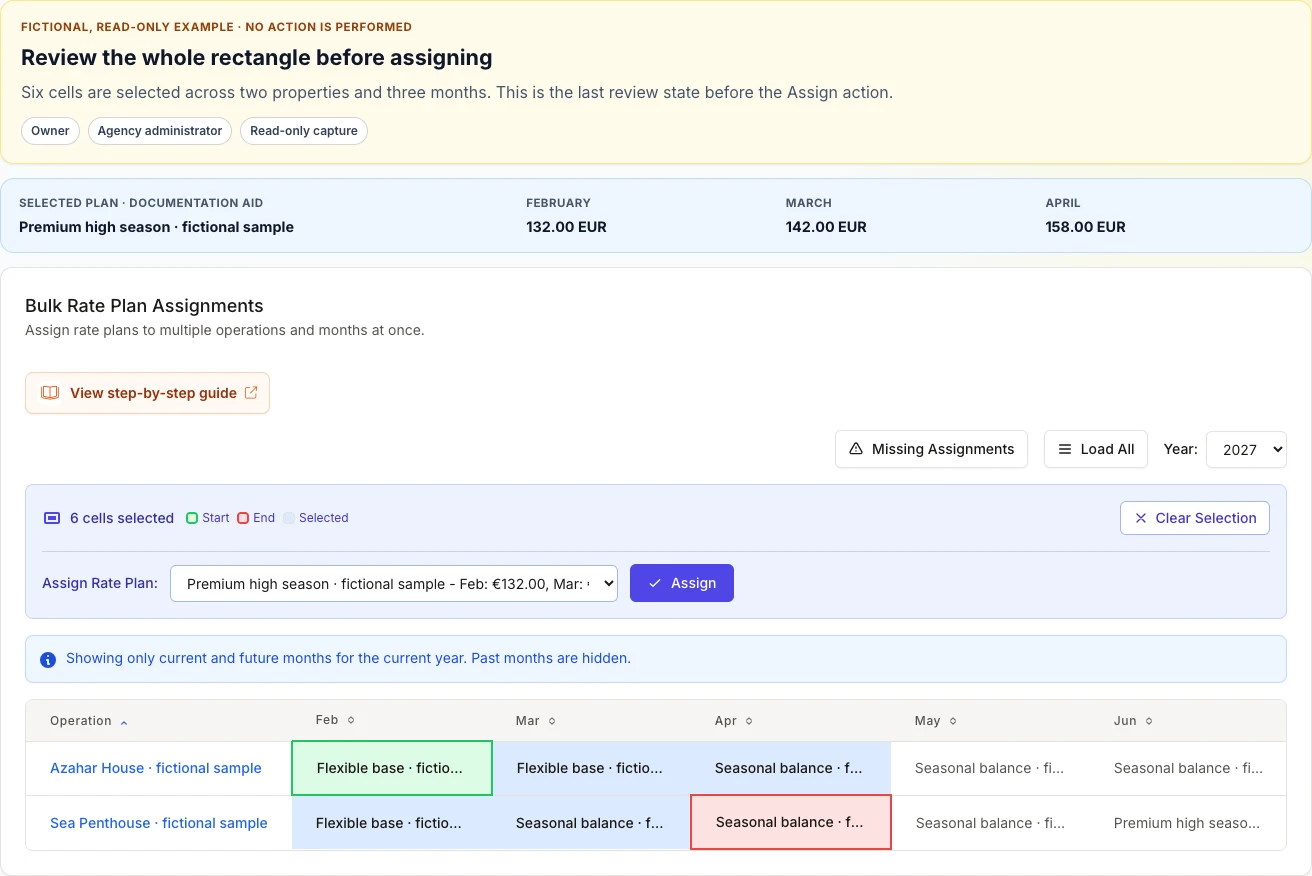
- Go to Price Calendar > Bulk Assignments and select the year.
- If you need both complete and incomplete operations, turn off Missing Assignments with Show All.
- Select the first cell in the range.
- Select the last cell. Holidario marks the rectangle between them, including every intermediate row and column.
- Check the cell count, start cell, end cell, and every included property. The visual example contains six cells: two properties by three months.
- Choose the plan under Assign Rate Plan. The selector shows prices for the selected months.
- Select Assign only when the rectangle is correct, then wait for the success notice.
A rectangular selection can replace existing assignments across several operations. If you intend to change only one, confirm that both cells are on the same row. A third selection restarts the range from that cell. If you are on mobile, continue this task on a desktop or wide screen before selecting or assigning: the selection panel and assignment row do not fit reliably on mobile.
Verify the result#


After confirmation:
- the grid reloads and clears the selection;
- every assigned cell shows the current plan name;
- a dash (
-) means that month still has no plan; - changed assignments trigger synchronization for the affected months.
The grid proves which plan is assigned, but it does not by itself prove the final published price or that an external channel has finished synchronizing. Open each affected operation and review representative calendar dates before activating channels or considering setup complete.
Errors and recovery#
- No operations appear: check Missing Assignments, the year, the active team, and whether the operation is disabled. The screen does not clearly distinguish an empty result from a load failure; if you know active operations exist, reload once and ask for help instead of assuming there is no outstanding work.
- You are a Manager: the default profile cannot load or execute this grid. Ask the owner or an administrator to apply the change; do not request broad permissions merely to bypass review.
- A plan is missing: confirm that it exists, is complete, and belongs to the active team. Use only plans visible in the selector.
- You selected too many cells: use Clear Selection before saving.
- Assignment fails: note the operation, year, months, and plan, reload once, and rebuild the range. If it fails again, ask for help with those details; do not click repeatedly.
- You assigned the wrong plan: select exactly the affected period again and assign the correct one. The new assignment replaces the previous one; do not delete the plan or property.