Guests and operations
Generate, save or print the guest information sheet
Distinguish the individual PDF from batch printing and review its content before handoff.
- I manage my own rentals
- I own or administer an agency
- I manage operations
- I work at the front desk
- Owner
- Agency
On this page
The guest information sheet is an operational document for the stay. It can include the guest and reservation number, property, address, map, dates, nights, public notes and a QR code to the guest area.
It is not the police traveller record, check-in report, contract or payment confirmation.
Review source data#
Before generating it:
- open the correct reservation and confirm it is not cancelled or marked no-show;
- review the guest name, language, property and dates;
- check the property address and coordinates;
- review the operation's public notes and remove internal information;
- open the guest area and verify that its available content is appropriate.
The sheet uses the reservation language when its translation exists and otherwise falls back to English. Its QR code is a signed guest-area link that expires when the stored departure date begins; it may stop opening during departure day itself. Before check-in (or the deposit, when one is required) the QR code opens the reservation page, not the guest area. Test it before handoff and treat it as confidential access: never reuse a sheet from another stay.
Open or save an individual PDF#

- In Calendar, open the reservation.
- In the reservation header, open the ⋯ (Actions) menu and select Open Guest Information Sheet.
- Holidario opens a PDF in another tab.
- Visually verify the guest, property, address, dates, notes and QR code.
- Use browser controls to save the PDF or send it to a printer.
This route does not require PrintNode. When coordinates are missing, the PDF states that the map is unavailable; correct the property and generate it again. If the QR code is absent, do not hand out a sheet promising access: share a verified guest link through another channel or escalate the failure.
The image in this section reproduces the current Open Guest Information Sheet action with its destination disabled. Use it to recognize the menu option; it does not open a reservation or generate a PDF.
Print several sheets through PrintNode#
The Print Guest Info Sheets batch action does not download PDFs. It sends jobs to the document printer configured in PrintNode.
- Confirm the Agency account has
printnode_integration, a valid connection and a selected document printer. - Open Reservations and select only verified stays.
- Choose Print Guest Info Sheets.
- Wait for the queued-batch notice.
- Review the batch status and failed jobs.
- Collect the pages and match each one to the selection.
Queued status does not mean paper was produced. Physically verify the printer, paper and reservation on every sheet before handoff.
Content and boundaries#
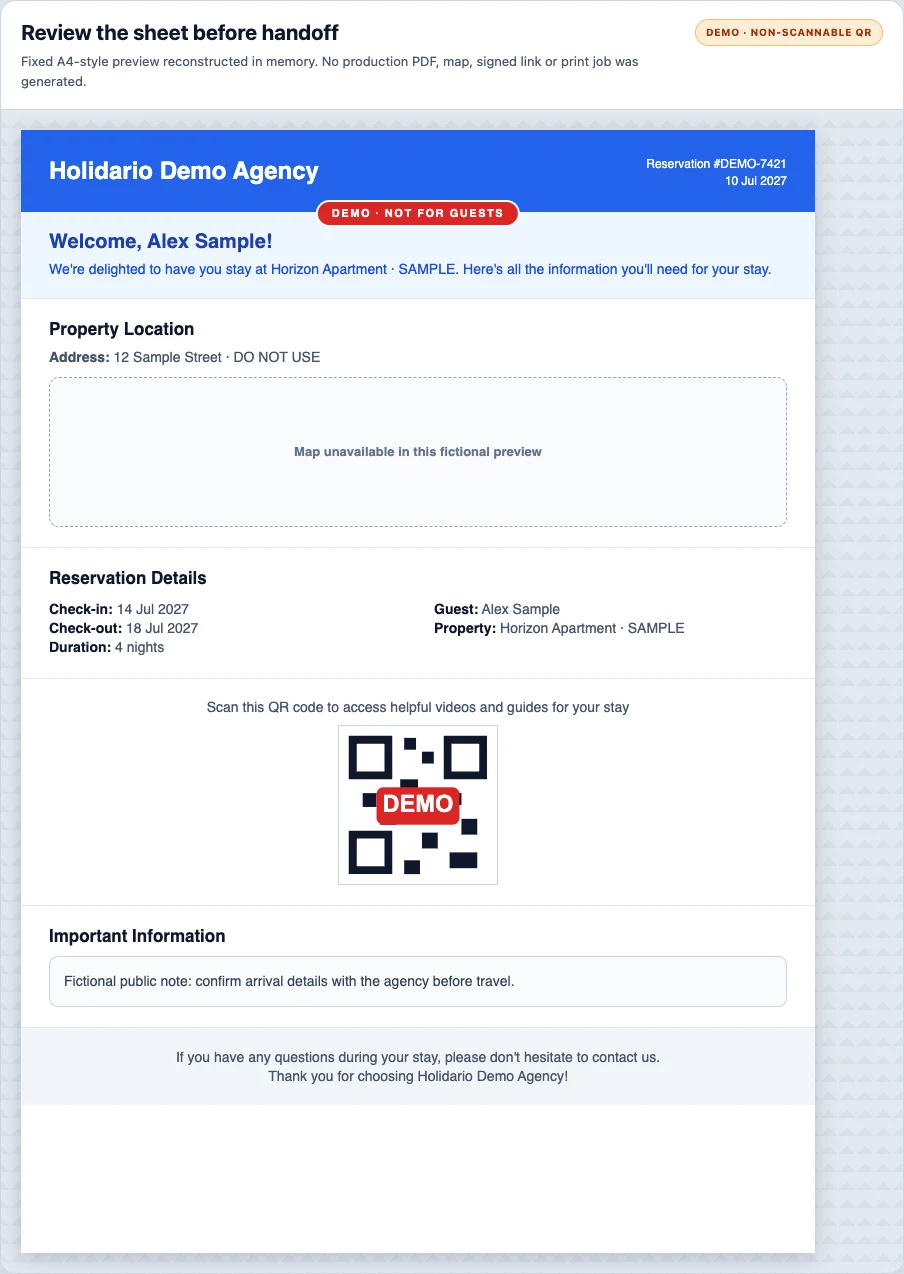
- The map appears only with valid latitude and longitude.
- Notes come from the operation's public notes.
- The QR code opens the guest area, not the traveller registration form directly.
- The sheet does not list every registered traveller or prove check-in is complete.
- It does not automatically contain a key override, lockbox code, invoice or contract.
The visual under this section is a fixed A4-style reconstruction with fictional data, an unavailable map and a non-scannable demonstration QR code. It is not a PDF generated from a real reservation: use it to recognize the sections and their boundaries, not to validate a stay's layout, map or QR code.
Use Record and review guest check-in details for travellers. Use Share the guest check-in link for the corresponding form.
Privacy and handoff#
Paper and PDF contain reservation data and temporary access. Give them only to the correct guest, never leave them visible at reception and destroy failed prints under your procedure. Do not attach the sheet to a support ticket without hiding the name, reference, address and QR code.
Do not assume that the PDF can be reviewed or printed correctly on every phone, tablet, or computer. Before using a device operationally, open a test sheet and verify legibility, pages, dates, map, and QR code; for batches, also verify selection, queue, and printer.
If the viewer clips content, the QR code cannot be checked, or printing is ambiguous, do not hand over the sheet. Transfer the work through the agency's secure channel to an already verified larger-screen workstation, or hand it to the responsible person.
Problems and recovery#
- The individual action is missing or returns 403/404: check
read-event, reservation authorization and active team. - Data is wrong: correct the source first and generate a new PDF; an earlier copy does not update itself.
- Language is wrong: correct the reservation language and regenerate it.
- The whole batch fails: confirm PrintNode configuration and the document printer.
- Only some reservations fail: inspect their property, event and reservation relationships; do not reprint everything without isolating them.
- The printer duplicated jobs: compare IDs before handoff and securely dispose of surplus pages.
Escalate with the reservation or batch ID, time, individual or batch action and visible status. Never include the QR code or personal data in the screenshot.